
This is a module of the Plover Kit plugin (Version v1.2.0 or above), you must install this plugin to access the features below.
Version v1.7.0 includes major updates to the Code Snippets module. Please read the release notes for more details.
Insert code snippets to site header or footer section like Google Analytics code, AdSense Code, Facebook Pixels code, and more.
You no longer need to manually modify theme code such as header.php, and no code snippets are lost when switching or updating themes.
You can enable this module via “WordPress Dashboard -> Plover Kit -> Modules -> Code Snippets“
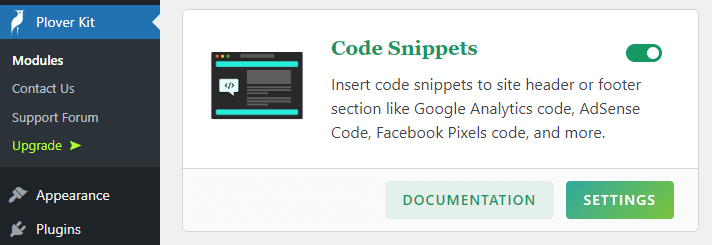
You can manage code snippets by clicking the Settings button.
Add New Code Snippet
Let’s show how to add code snippet to your site with an example of adding Google AdSense auto ads code.
First, Click the Add New Snippet button in the upper right corner of the Code Snippet module settings page.

Although this is a demo, if you did have an AdSense account and are looking for how to add ad code, then you can copy your own ad code via Get and copy the AdSense code.
Then as shown in the image below. Paste your ad code in the code editor on the left, and set the meta information of the code snippet on the right sidebar.
Finally click the save button and you’re done.
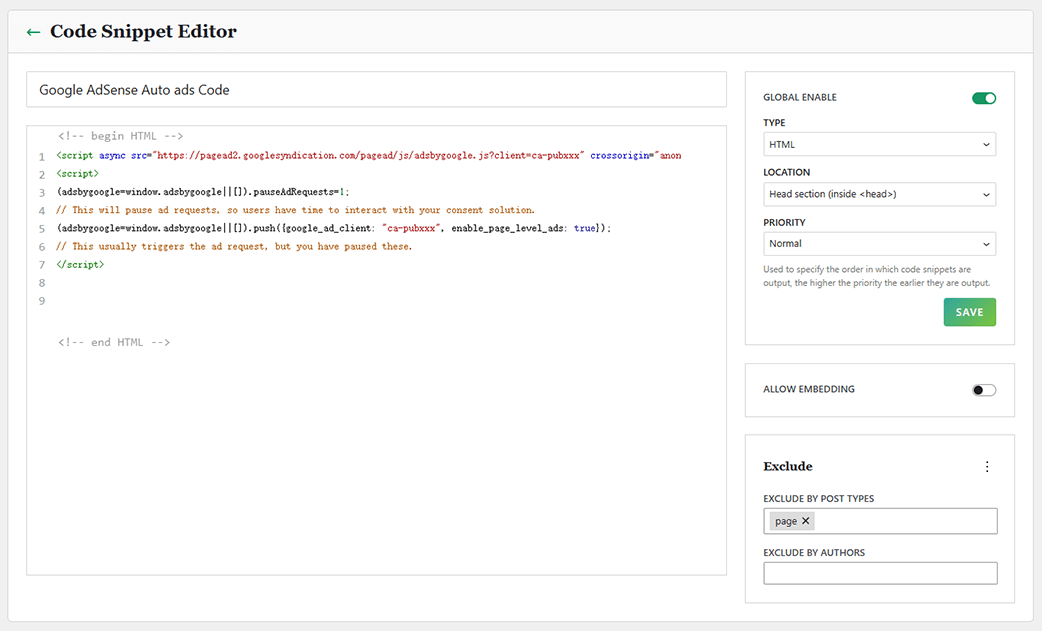
Code Snippet Option Details
Now, Let’s dive into what the code snippet options does.
Snippet Name / Title
The name of the snippet, used to differentiate it when managing snippets. I suggest you choose a name that matches the actual function.
Global Enable
You can enable or disable a snippet without removing it with this option.
Type
Code snippet types: Currently supports HTML, CSS, JavaScript, and PHP (Premium version only).
Location
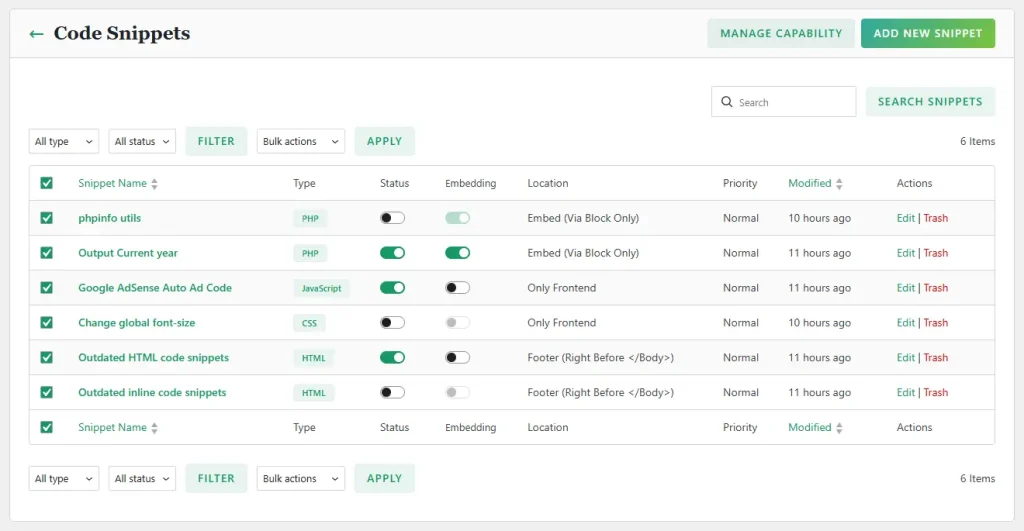
We’ve rethought “where your code runs” to give you clearer control. All snippet types now share a consistent location logic, plus a brand‑new “Embed (via block only)” mode.
HTML Snippets
-
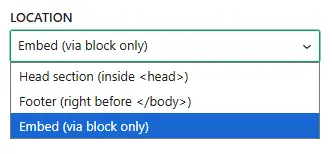
Head section (inside
<head>) – ideal for meta tags, analytics scripts, or font loading -
Footer (right before
</body>) – ideal for deferred scripts or footer banners.
CSS, JavaScript & PHP Snippets
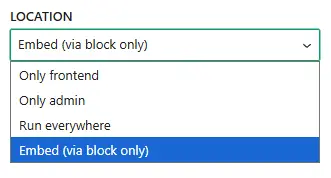
- Only frontend – loads exclusively on the visitor‑facing side of your site.
- Only admin – loads only inside the WordPress dashboard.
- Run everywhere – loads on both frontend and admin.
New: Embed (via block only) – Available for All Types
Snippets set to this location will not run globally. They will execute only where they are explicitly inserted via the Gutenberg Block.
Priority
Priority used to specify the order in which code snippets are output, the higher the priority the earlier they are output.
Allow Embedding
Snippets will no longer be embeddable by default. For a snippet to function inside a Gutenberg block, it must have the Allow Embedding option explicitly toggled ON, and the snippet itself must be active. This prevents inactive or internal snippets from accidentally appearing in your content.
Read the v1.7.0 release notes for more details about this feature.
Exclude Post Types (Premium)
In the premium plan this code snippet will not be output in excluded post types.
Exclude Authors (Premium)
In the premium plan this code snippet will not be output in posts published by excluded authors.
Exclude Posts/Pages/Products … (Premium)
In the premium plan you can also exclude snippets from individual posts, pages or products.
Code Snippet List
When you navigate to the Code Snippets Module Settings page, if you have created some snippets, you can edit or delete it here.
Code Snippet Block (Premium)
You can use the Plover: Code Snippet block to output pre-created code snippets on anywhere.
Add code snippet block via slash command:
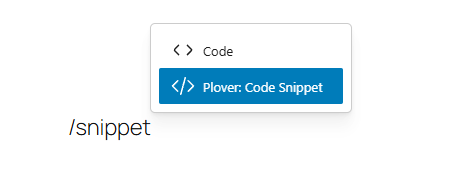
Then select the code snippet you want to output from the list.
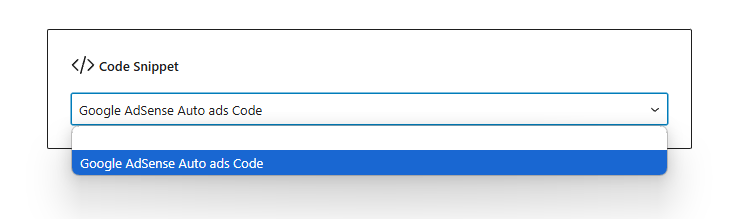
Since v1.7.0, you must enable “Run Embedded” for a code snippet, and the current user must have permission to embed the code snippet in order to access it from a block. Read the v1.7.0 release notes for more details about this feature.
The code snippet options (position, priority, exclude, etc.) does not work for this.
Code Snippet Shortcode (Deprecated)
Since v1.7.0, code snippet shortcode is deprecated, Read the v1.7.0 release notes for more details about this feature.
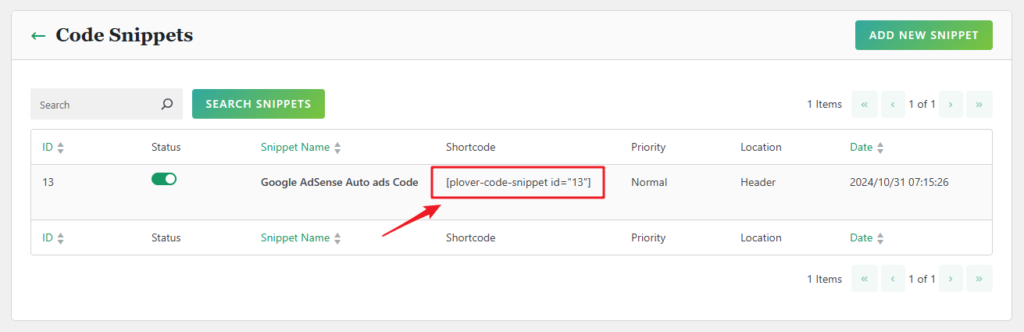
Another way is to output pre-created code snippets on anywhere via Shortcode.
This method has the same effect as Plover: Code Snippet block, and is more useful in locations where blocks are not supported.
You can find the shortcode for each code snippet in the Code Snippet list.
The code snippet options (position, priority, exclude, etc.) does not work for this.
Supported Features
- Google Analytics code
- Google AdSense code
- Google Tag Manager code/script insertion
- Google Optimize Code for A/B testing ( Ab Testing )
- Google search console authentication code to any theme for verification
- Add Custom CSS, any script, and HTML to your website
- Add Microsoft clarity tracking code to your website
- Add Pinterest site verification
- Facebook Pixels, Facebook Scripts, Facebook og:image Tag
- Google Conversion Pixels
- Heatmaps from Crazy Egg, notification bars Hello Bar, etc.
- It can accept ANY code snippet (HTML / JavaScript / CSS / PHP) from any service
- …
Leave a Reply