
For WordPress beginners, the most obvious way to add custom CSS is to directly edit theme files, such as style.css. However, this approach comes with several issues.
First, a common issue is that not all themes enqueue the style.css file, so your modifications may not take effect.
Second, a minor error could cause the entire website to crash, so you must exercise extreme caution.
Finally, as the theme is updated, your modifications will be overwritten. After each update, you must reapply your changes.
Fortunately, this isn’t the only way. In this guide, we’ll walk you through three simple methods to add custom CSS to your WordPress site, step by step.
Ready? Let’s get started.
Method 01: Adding Custom CSS Using Customizer (Suitable for classic themes)
First, Insert the /wp-admin/customize.php structure at the end of your URL.
In our example, the URL became: https://yourdomainname.com/wp-admin/customize.php. In your case, just replace the website’s name with the one you administrate.
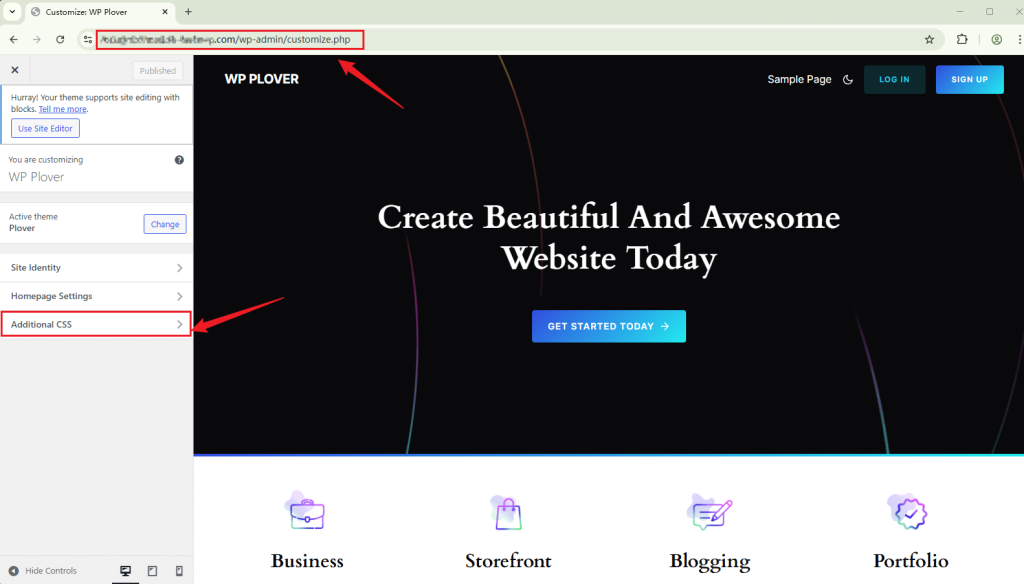
Then, click the Additional CSS tab to start editing until you are satisfied.
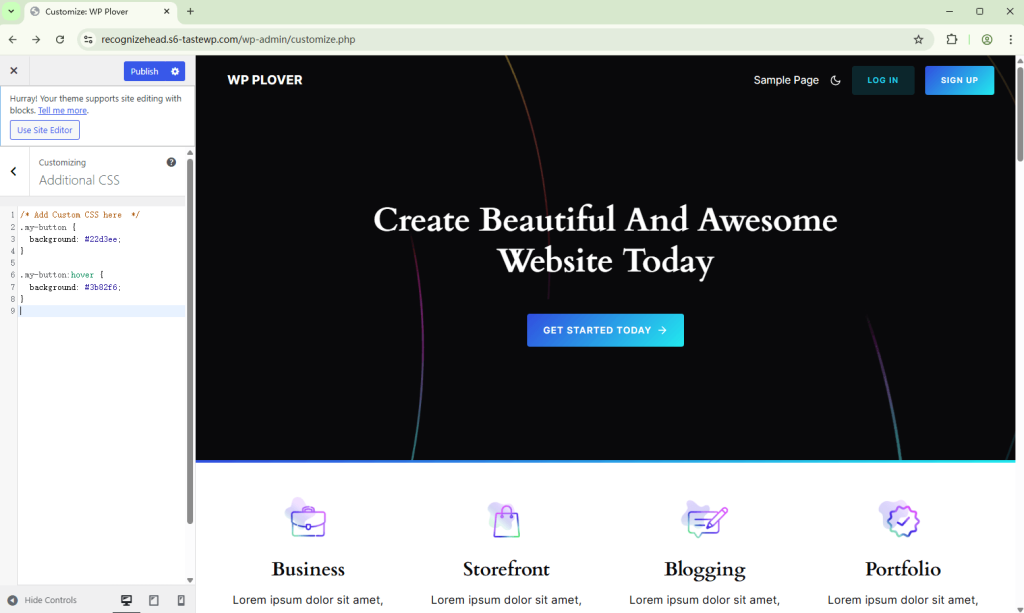
Don’t forget to click the Publish button at the top when you are finished.
Note: This method works for both classic themes and FSE themes. For classic themes, you will be able to see it applied on your website’s live preview panel. However, for FSE themes, you must publish your changes before you can review them. Therefore, for the FSE theme, we recommend using the second method.
Method 2: Adding Custom CSS Using the Full Site Editor (Block Themes Only)
If you are using a Modern Block theme, the best place to add custom CSS is directly within the site editor. This method keeps your CSS within the theme’s style settings and supports live previews.
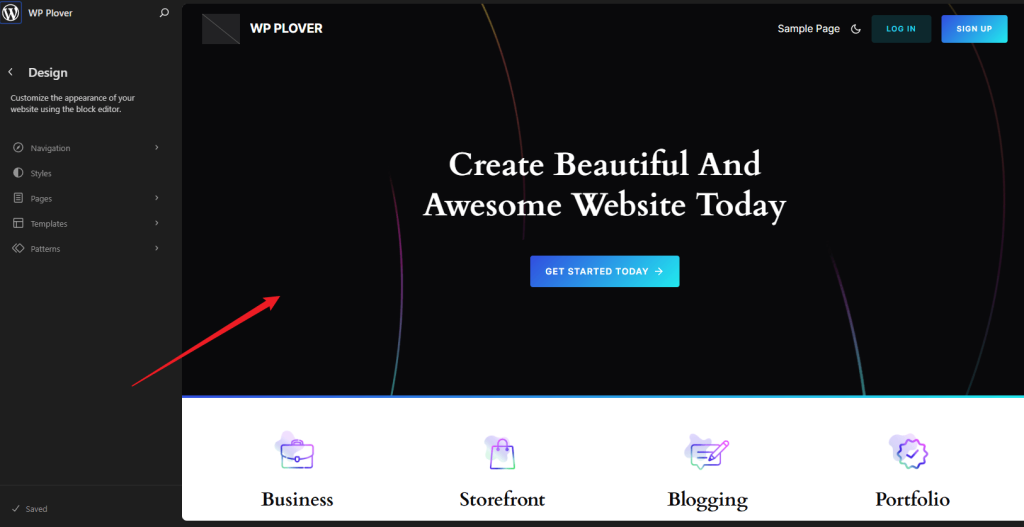
First, navigate to Appearance » Editor from your WordPress dashboard.
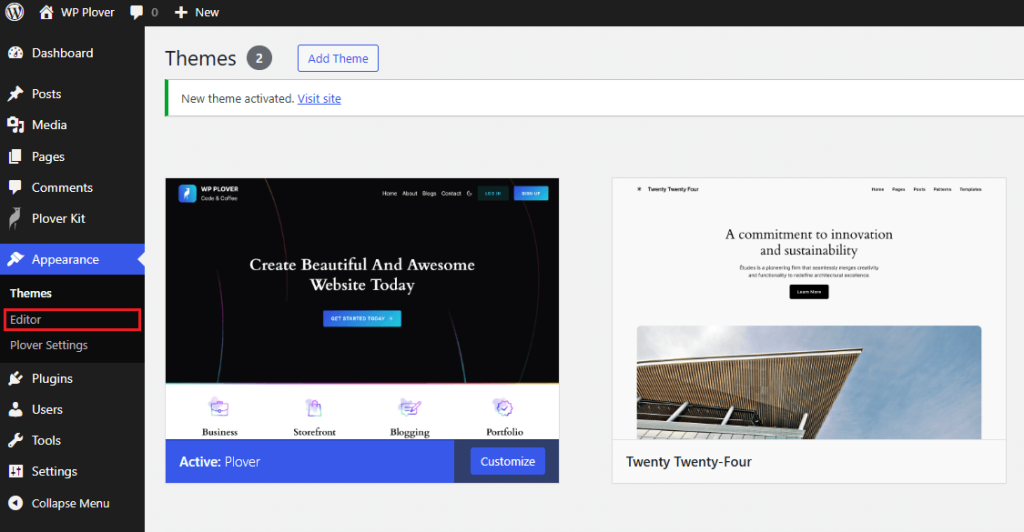
Then, click on the preview window to open the block editor.
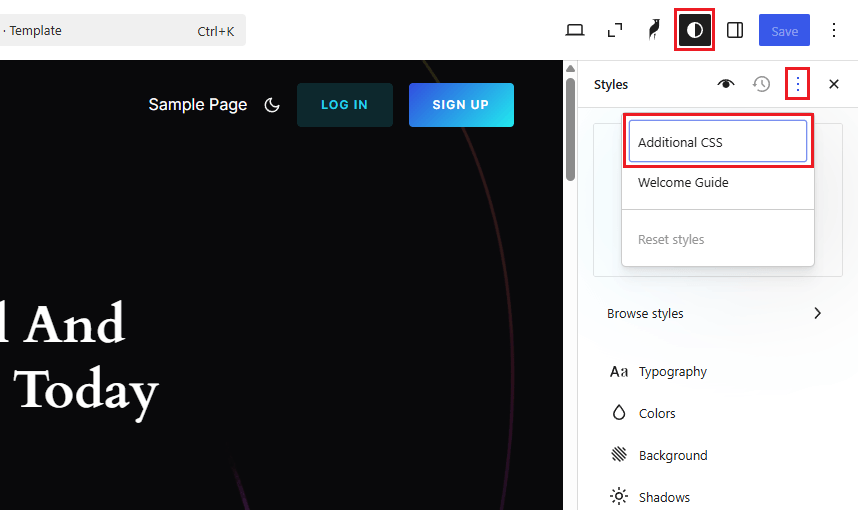
In the editor, click the Style icon in the toolbar at the top right.
After that, click the three dots above the Styles sidebar and select Additional CSS from the pop-up menu.
In the CSS slide-out, you’ll find the Additional CSS field. You can enter your CSS here, and you’ll see the changes instantly in the live preview.
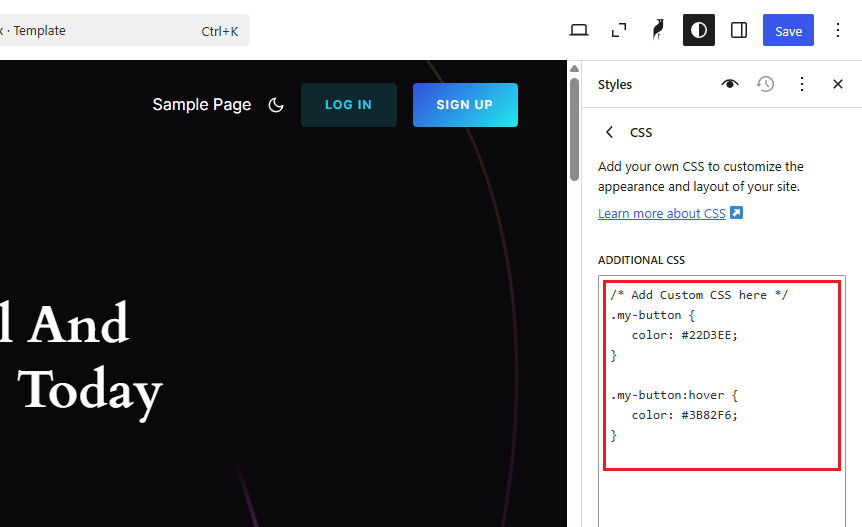
Note: Don’t forget to click the Save button at the top right to publish your changes when you are finished.
Method 3: Adding Custom CSS Using the Plover Kit Plugin (Any cases)
Keep in mind that the CSS changes in the first two methods are tied in with your theme. This means that if you change to a new theme, your custom CSS styles will no longer be active (of course, if you change back to your previous theme, they will once again be there).
If you want your custom CSS to be applied regardless of which WordPress theme you are using, this method is for you.
Plover Kit is an all-in-one plugin offering a pattern library and pluggable modules that enhance the Gutenberg core blocks and also provide extended features.
Among the many useful modules, the Code Snippets module is particularly well-suited for adding custom CSS.
It also supports adding HTML and JavaScript code snippets to site header or footer section like Google Analytics code, AdSense Code, Facebook Pixels code, and more.
You no longer need to manually modify theme code such as header.php or style.css, and no code snippets are lost when switching or updating themes.
In the premium Plover Kit plugin, you can exclude loading code snippets based on individual posts, post types, authors, and more.
You can also use shortcodes to add code snippets anywhere.
Okay, let’s dive into today’s topic: adding custom CSS using the Plover Kit plugin.
First, You can access this module via WordPress Dashboard » Plover Kit » Modules » Code Snippets » Settings
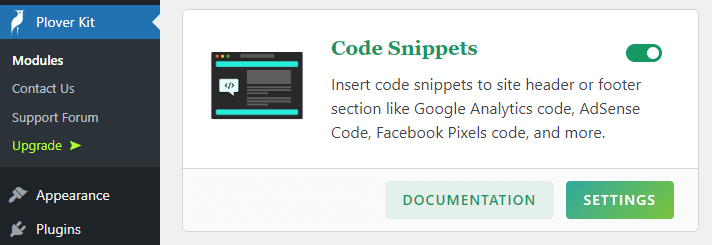
After that, Click the Add New Snippet button in the upper right corner of the Code Snippet module settings page.

Then as shown in the image below. Paste your ad code in the code editor on the left, and set the meta information of the code snippet on the right sidebar.
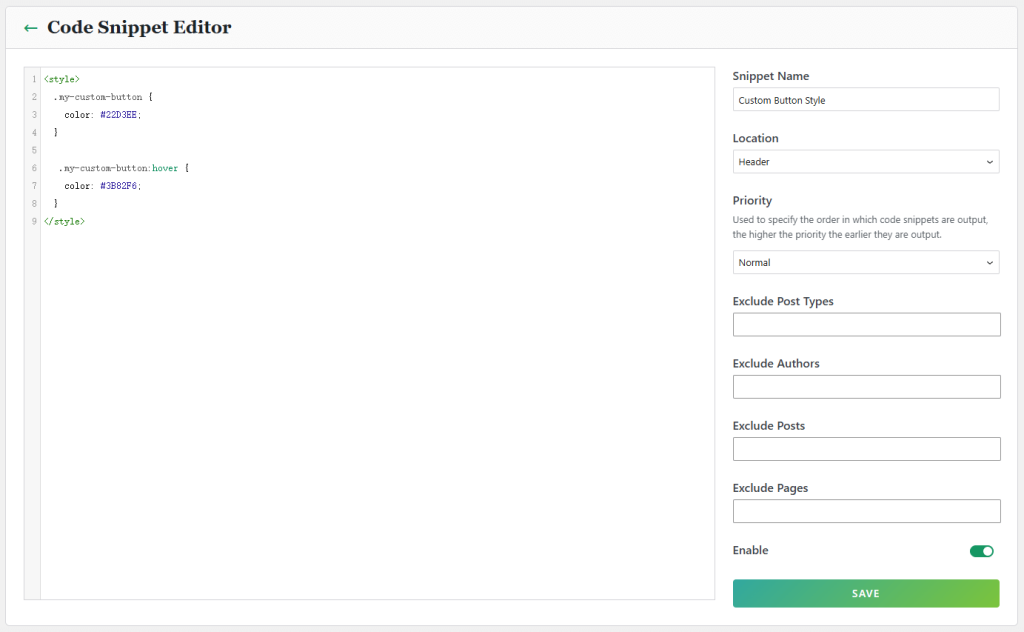
Finally click the save button and you’re done.
Note: You must wrap your CSS code within <style></style> tags for it to load and function correctly.
As shown in the code snippet below, just replace the /* Your Custom CSS code here */ with your custom CSS code
<style>
  /* Your Custom CSS code here */
</style>
Extra Tips and Methods
All three methods are recommended for beginners and will avoid some of the common issues mentioned at the beginning of this article.
Another advanced method to add custom CSS is to create a child theme.
However, creating a child theme requires a basic understanding of PHP, CSS, and WordPress. Many beginners avoid creating child themes because they find the process intimidating.
We hope this article helps you successfully add custom CSS to your WordPress site.