
This module introduce multiple magazine blocks to enable dynamic content display in a magazine layout, enhancing your WordPress website experience.
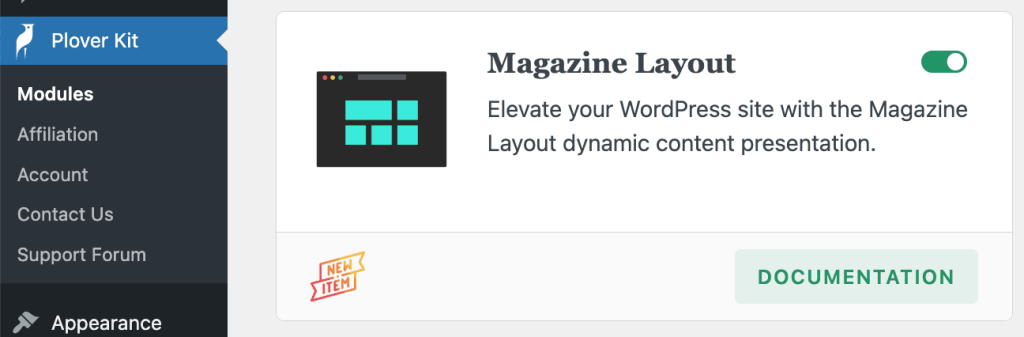
You can enable this module via “WordPress Dashboard -> Plover Kit -> Modules -> Magazine Layout“
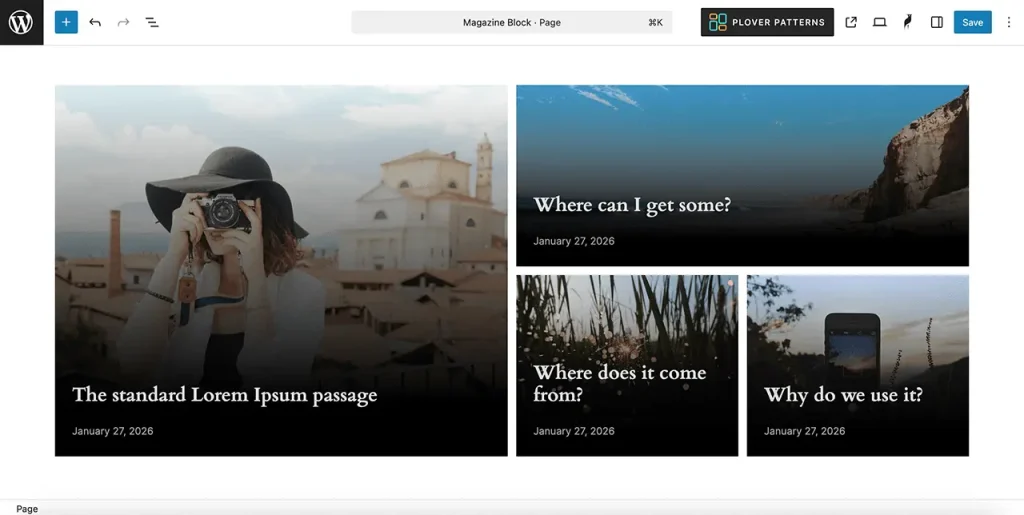
Magazine Query Block
The Magazine Query block is a variant of the Core Query Loop block, offering magazine layout presets.
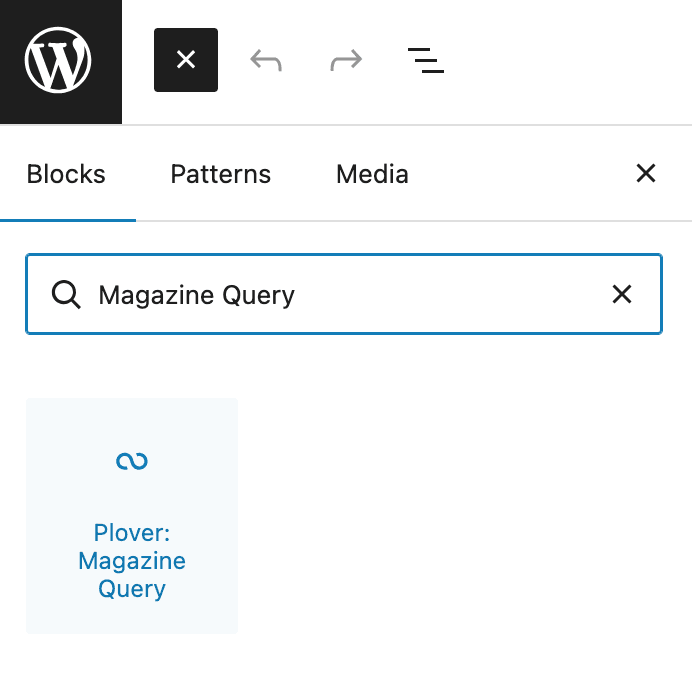
Add Using Block Inserter
To add the Plover: Magazine Query block to a page, click the Add block button to open the block inserter pop-up window and choose the Plover: Magazine Query block.
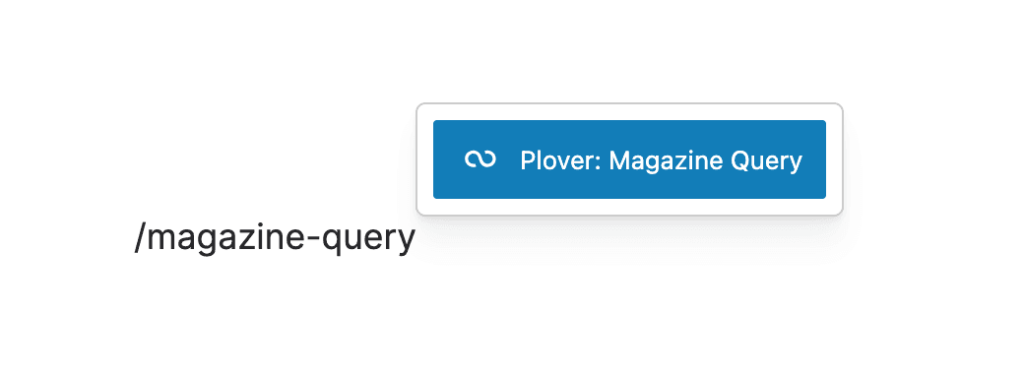
Add Using Slash Command
You can type /magazine and hit enter in a new paragraph block to add one quickly.
Anatomy of The Magazine Query Block
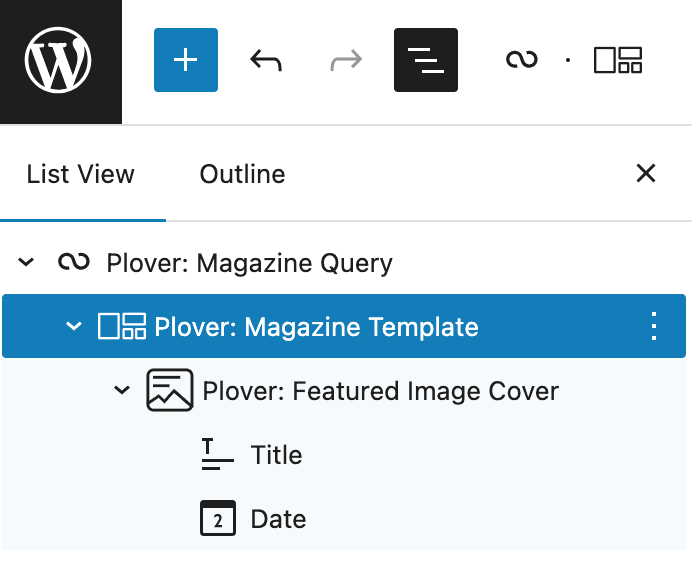
The block inspector provides a quick overview of the Magazine Query block’s structure. Each part gives you access to different settings:
- Plover: Magazine Query (Configure the query parameters, such as post type or category)
- Plover: Magazine Template (To choose how content is displayed, you can select different magazine layouts in the block settings)
- Plover: Featured Image Cover (A variant of the Cover block, featuring the post’s featured image as its background and spanning 100% height. You can add the post’s metadata within it, such as the title, date, author, and more.)
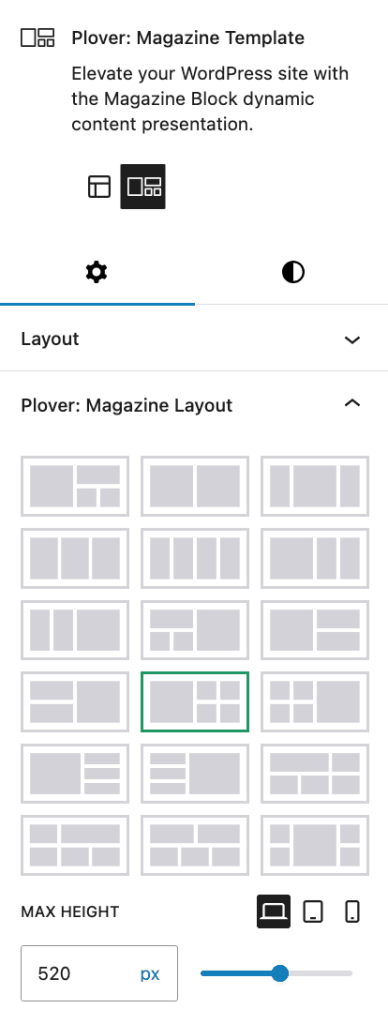
Plover: Magazine Template Block
You can modify the magazine layout in the settings sidebar of this block. The height parameter adjusts the overall vertical space occupied by the magazine layout. In the style panel, you can also customize fonts, colors, borders, spacing, and more.
Plover: Featured Image Cover
This block appears in every section of the magazine layout. You can replace it with a Group block or any other block.
We recommend setting this block to 100% height for optimal magazine layout display.

Leave a Reply