
Download plugin
After purchasing a product, you will be sent 2 emails. The first will provide you with a link to download the plugin, along with your license key.
The second email, which you’ll receive after the payment is successfully processed, will provide a receipt, as well as a secure link to download your PDF invoice.
If you purchased a lifetime license you’ll only receive a single email combining the secure download link, license key, receipt, and PDF invoice.
Upload the paid product to WordPress
Now that you’ve downloaded the premium zip file, you are ready to upload it to your WordPress website.
If at this step you see some error (for example: The uploaded file exceeds the upload_max_filesize directive in php.ini), go to “Installing by FTP” section.
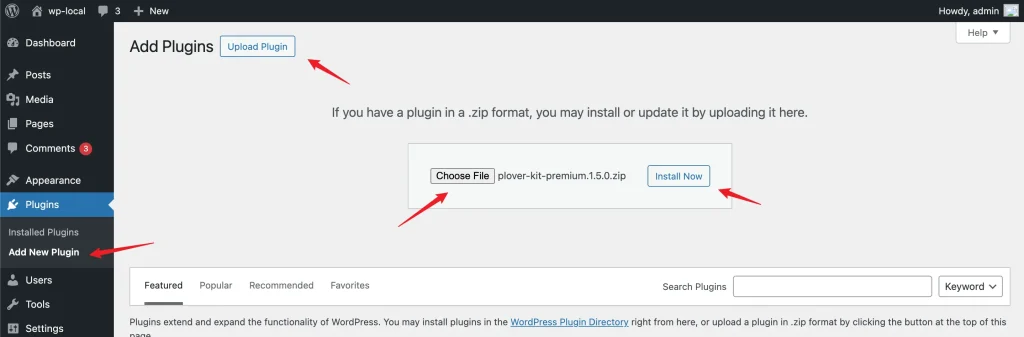
Click on the Add New Plugin sub-menu item under the Plugins menu in the WordPress dashboard.
Then click on the Upload Plugin button to the right of the title and the upload form will appear.
Click on the Choose File button and locate the downloaded premium plugin zip file from your computer. Finally, click Install Now button.
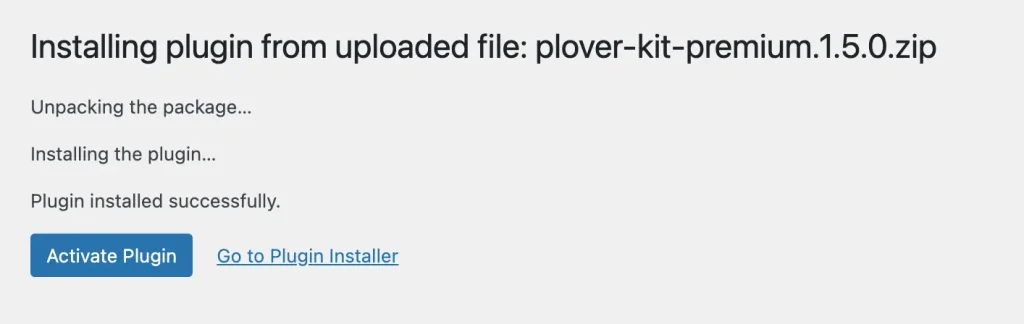
After successfully uploading the plugin, click Activate Plugin to enable the plugin on your site.
Activate the product with your License Key
If you’ve purchased the product directly within the WP Admin dashboard you are already good to go since the license key is automatically activated right after the upgrade. Otherwise, after activating the product, you will be redirected to a license activation screen.
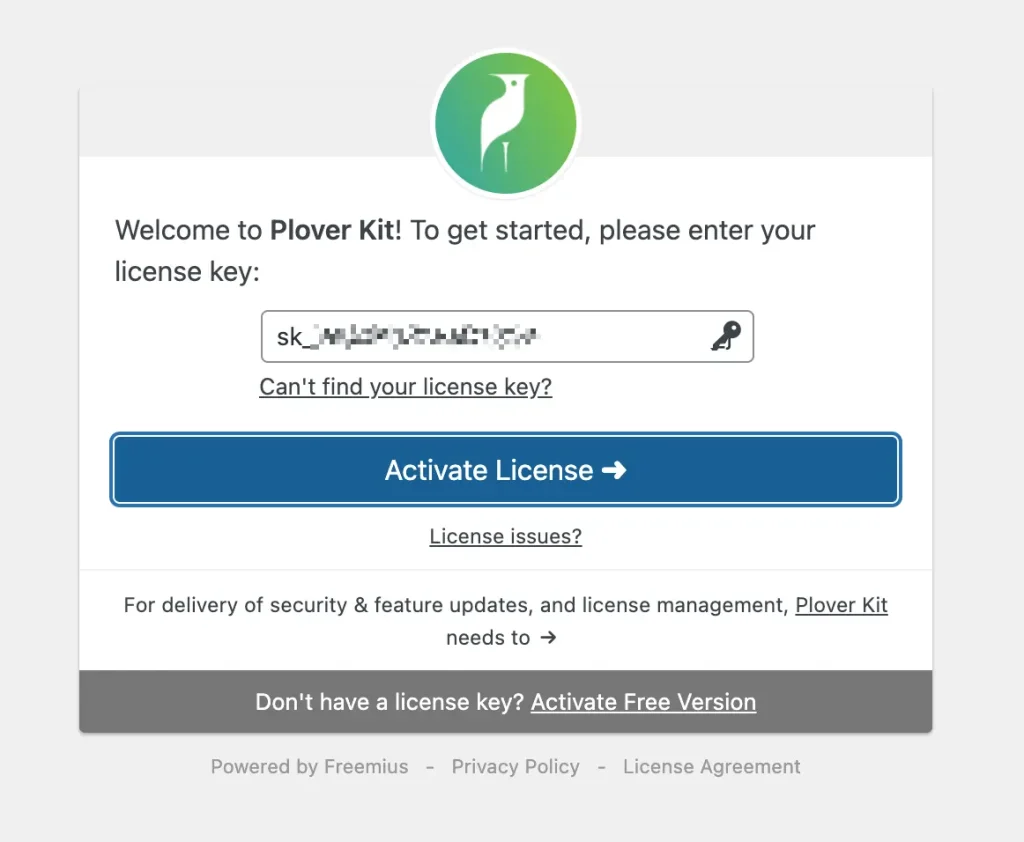
Simply enter the key provided in your email and click Activate License button. Your product will now be activated and you’ll be ready to begin setting it up.
Installing by FTP
If you have any problems with installing the plugin from the WordPress Dashboard (for example, you see this error: “The uploaded file exceeds the upload_max_filesize directive in php.ini”), then you need to install it via FTP.
To do this, you need to upload non-zipped plugin folder called plover-kit-premium to /wp-content/plugins/ folder in your WordPress installation folder on your server.
Next, login to your WordPress admin page and activate the plugins (Plugins > Installed Plugins).
After the successful activation, enter the license key follow the documentation above.
Leave a Reply