
This module registers an Icon Block, you can add SVG icons anywhere with this block.
You can enable this module via “WordPress Dashboard -> Plover Kit -> Modules -> Icon Block“
Add Icon Block
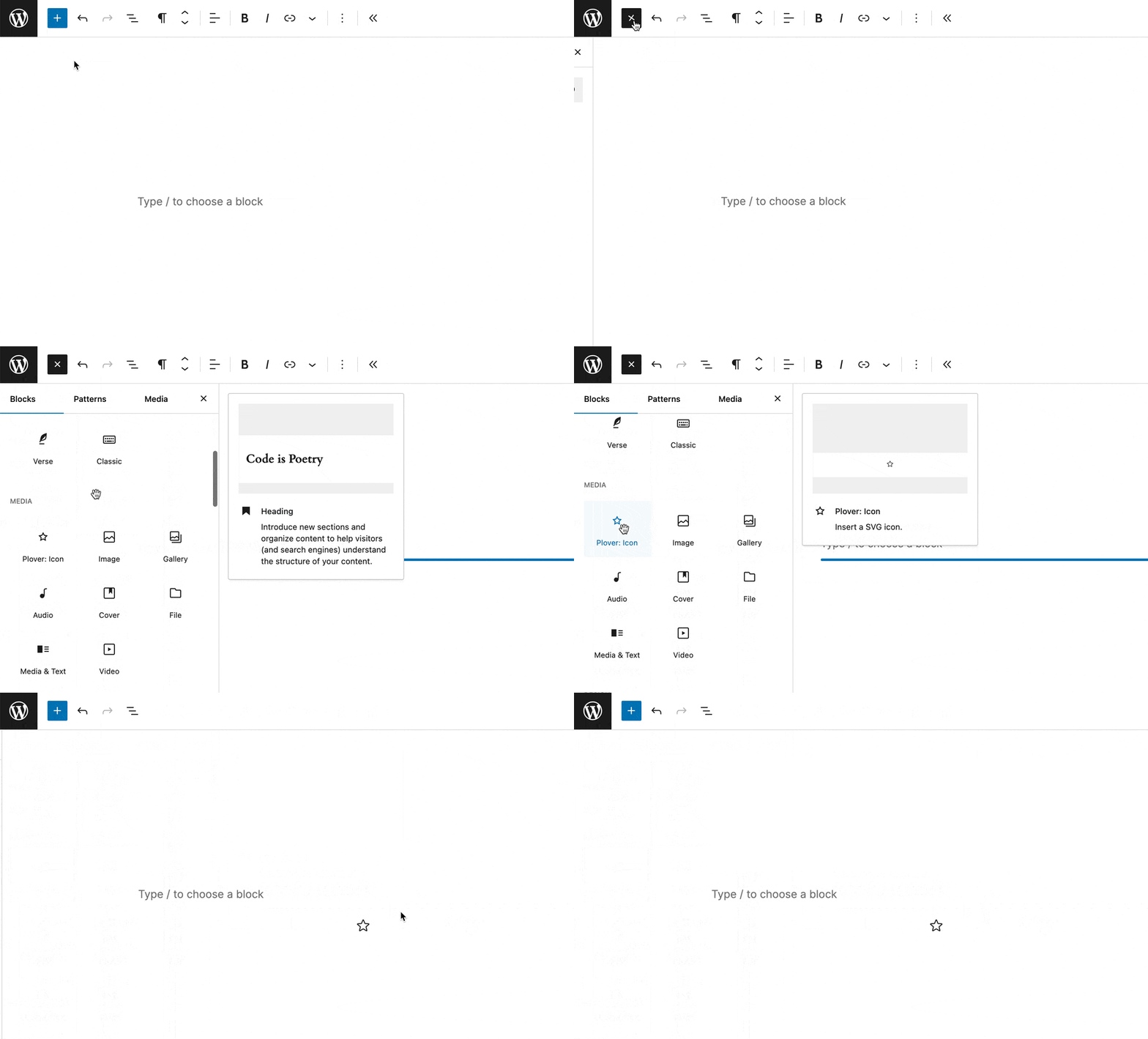
To add the Plover Icon block, open the block inserter by clicking the (+) icon on the upper left corner of the editor. After that, look for Plover Icon using the search bar and click it to insert the block into the editor.
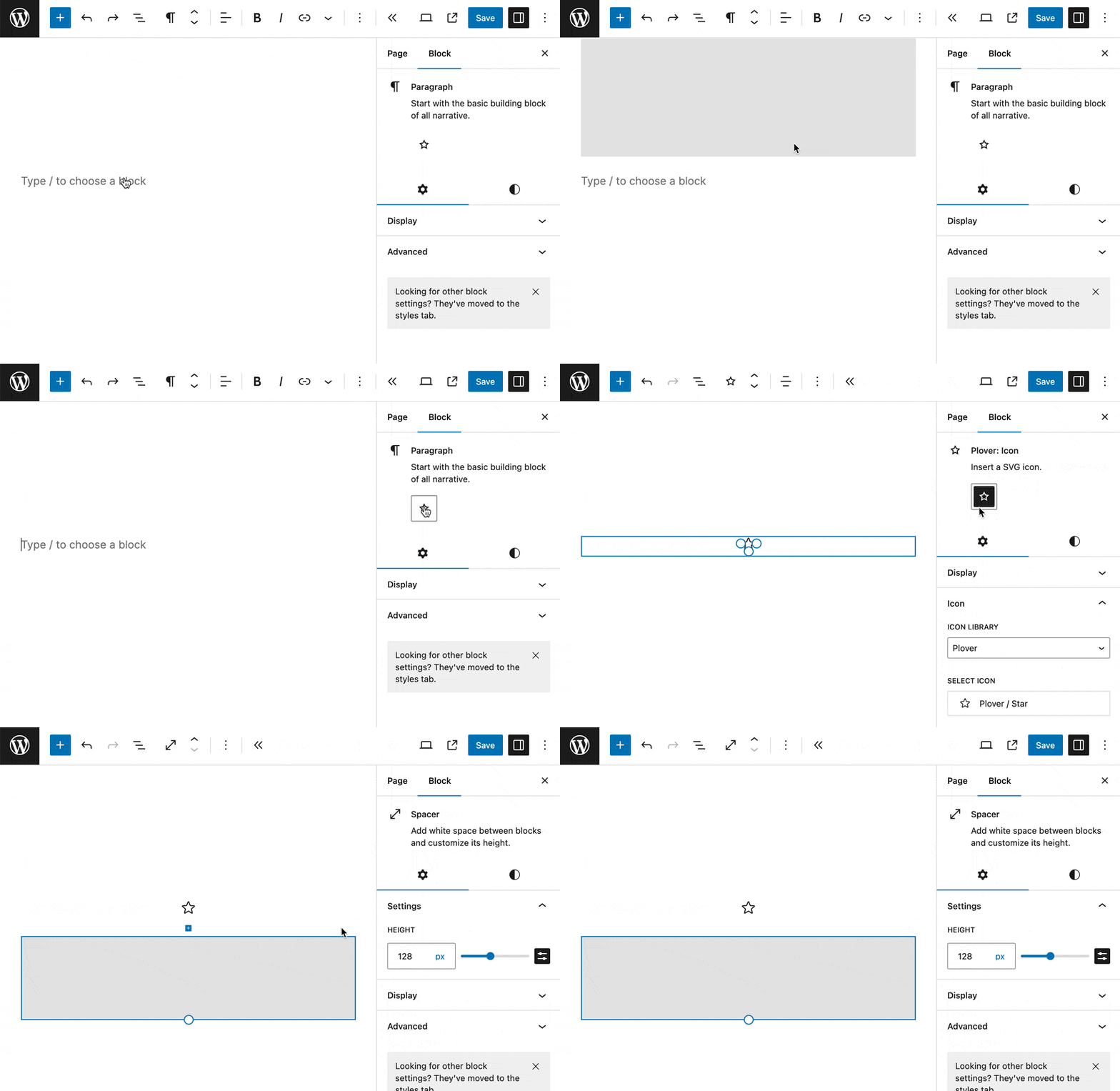
Alternatively, Icon Block is a variant of Paragraph block and you can transform from Paragraph block to Icon Block.
Choose Icon
When you select a library, you can choose an Icon from it.
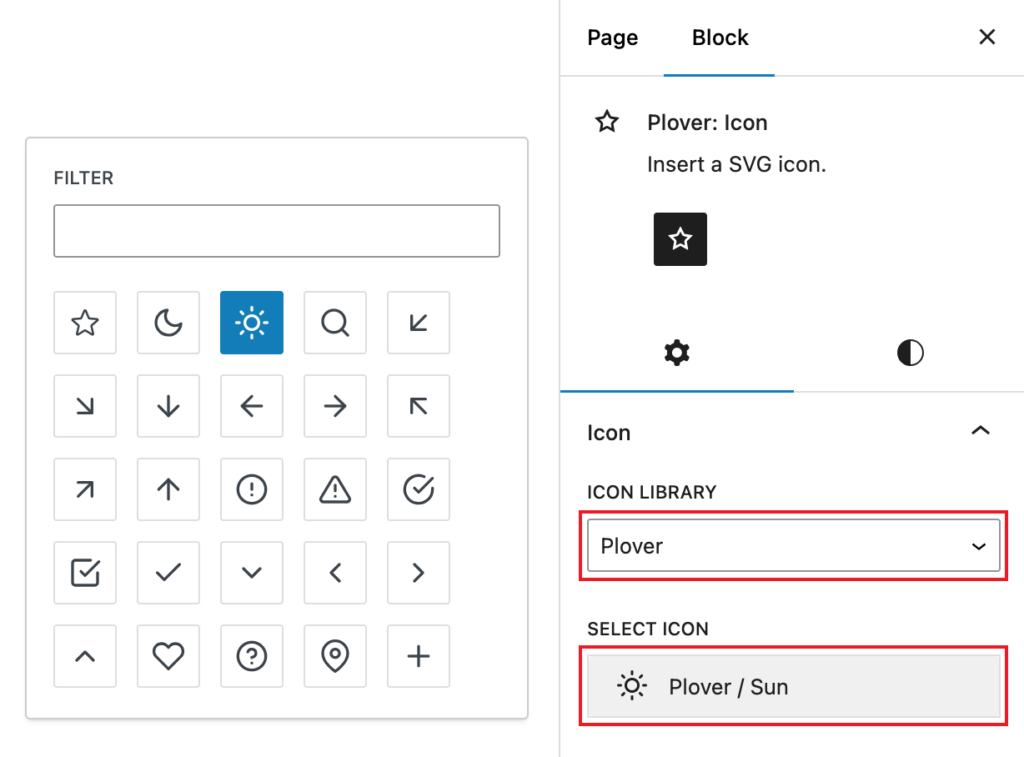
The Plover library that comes with the plugin has some commonly used icons, if you want more icons, check out the Icon Library module.
Icon Size
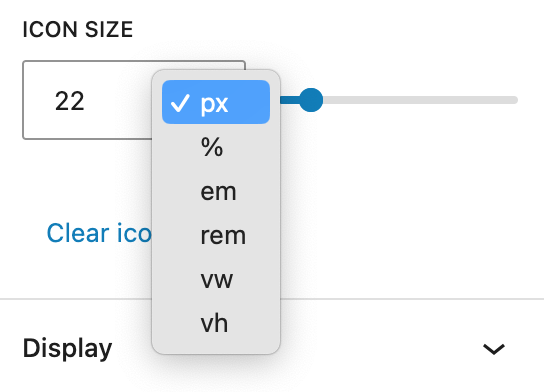
You can adjust the size of the icon with this option. You can switch the size units by clicking on it. 6 units are currently supported.
- px (Pixels)
- % (Percentages)
- em (Relative to the font size of the parent element )
- rem (Relative to the font size of the root element )
- vw (Relative to the viewport’s width)
- vh (Relative to the viewport’s height)
Alternatively, You can also visually resize the icon by dragging the handles around the icon once it is selected.

Icon Color
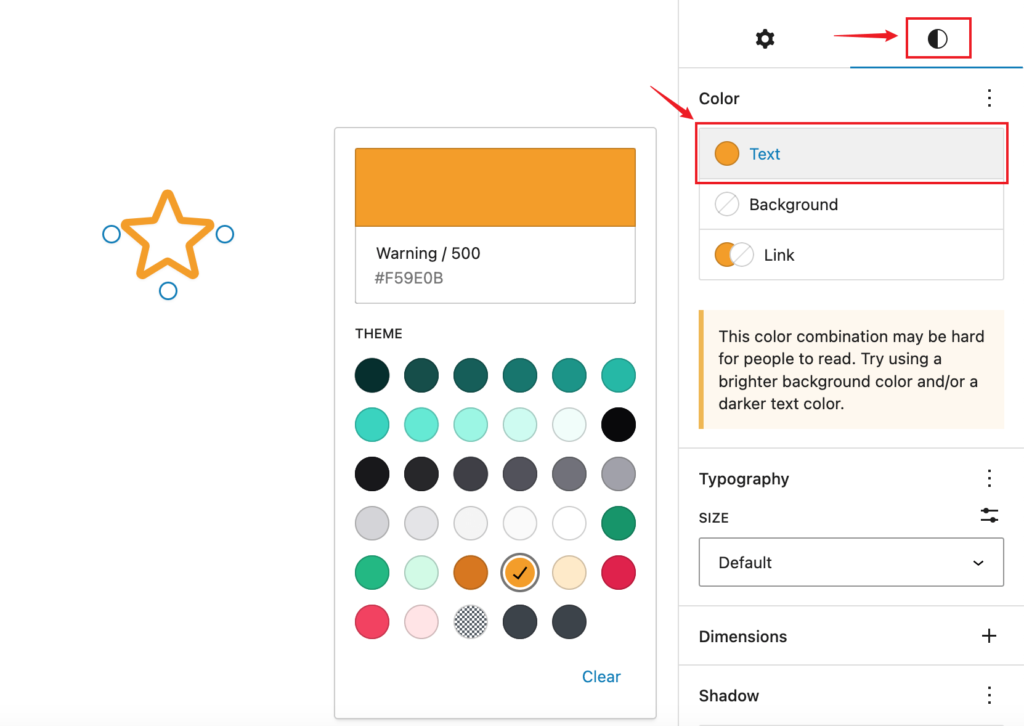
In the Style tab, you can adjust the icon color via Text Color.
Icon Alignment
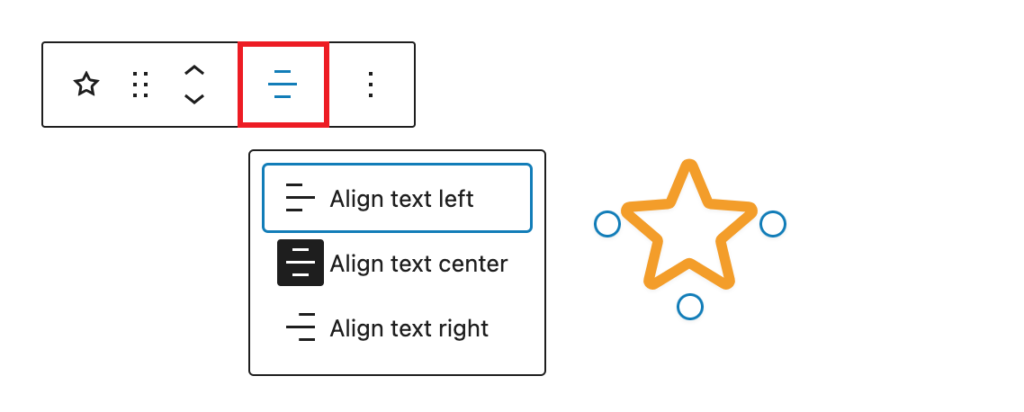
You can adjust the alignment of the icon via block toolbar.
Since the Icon block inherits from the Paragraph block, some options, such as typography, are editable but don’t actually work. This is not a bug as they are meaningless for an icon and you can ignore those options.
Inline Icon (Premium)
Inline Icon is only available in the Premium version.
Inline Icons let you incorporate icons directly within text elements (paragraph, heading, list, etc.) in your WordPress site. This feature is perfect for integrating small icons alongside text in posts, lists, or menus. Plover Kit makes it easy to:
- No need to use container blocks to combine icon and text, embed icons within paragraphs, headings, or lists without disrupting the flow of your content.
- Adjust icon size, alignment, and color to ensure they blend seamlessly with the surrounding text, improving the overall design.
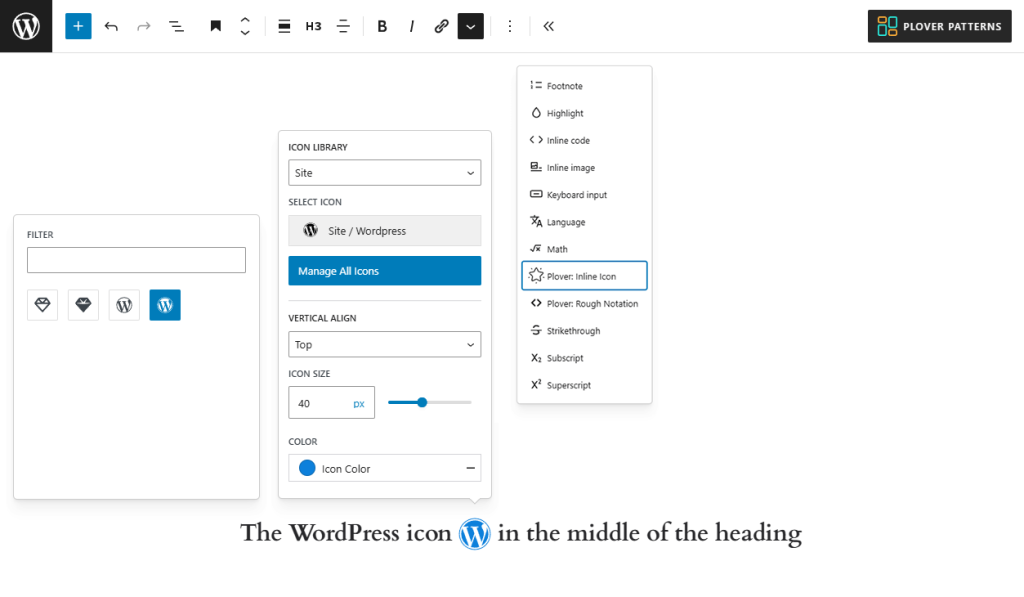
Inline Icon is available through the rich text formatting toolbar. When you select a piece of text in a Paragraph or Heading block, you can insert inline Icon with the More options menu in the Rich Text toolbar.
Then, in the pop-up, you can select icons from the icon library just like you would with icon block, and adjust the alignment and color of the icon.
More Icons
You can download and manage your icons through the Icon Library module of the Plover Kit plugin, and you can also upload your own SVG icons.
The Icons you add via the Icon Library will automatically be visible in the Icon block Icon Picker.
Leave a Reply