
Now it is time to enter the Site Editor. Click anywhere in the preview to open the editor.
The Site Editor has many features you may recognize from the block editor. There are several sidebars, and you can work with the sidebars closed or opened. In the screenshot, I have opened the list view and the Styles sidebar.
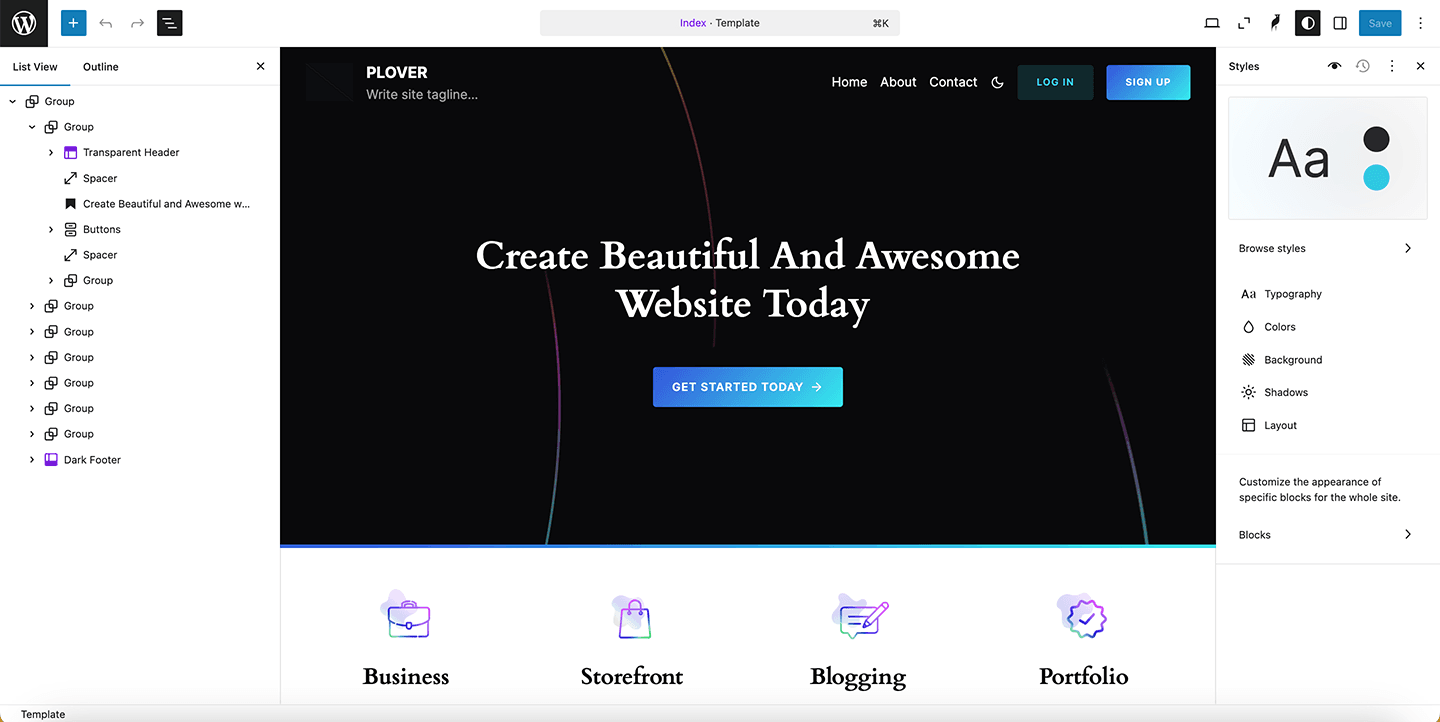
Starting from the top left: Clicking on the site icon or WordPress logo will open the navigation sidebar and the site preview. Next, we have the toolbar with the inserter, where you can select blocks, patterns, and media. We have the undo and redo and the list view.
Learn more about the list view in the official documentation.
At the top center of the editor, you will find the name of the current template. In this case, Index. Clicking on the template name will display the description of the template and a button that takes you to the screen where you can manage your templates.
And on the right-hand side, you have the View link and the save button, the options menu, and the block settings sidebar.
There is a second sidebar that is only available in the Site Editor: Styles. In this sidebar, you can change the default styles for the website (the body) and blocks.
Style sidebar
The Styles sidebar has options nested in several levels of panels. I will start at the top of the first panel.
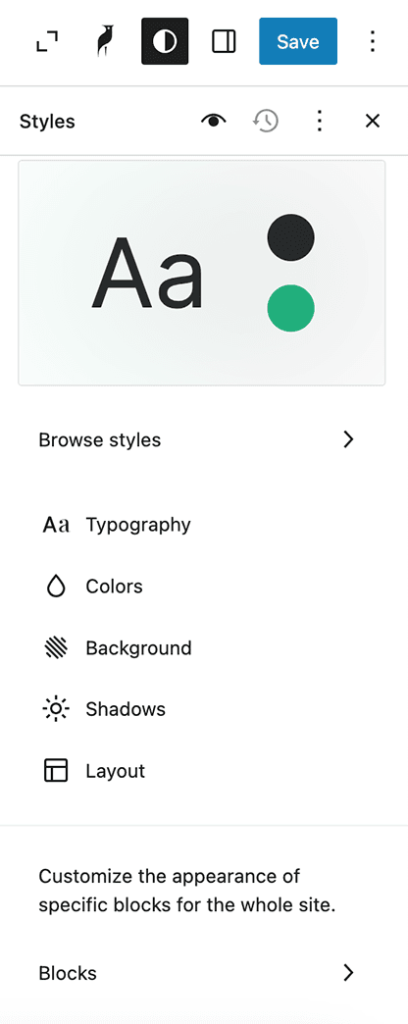
Browse styles
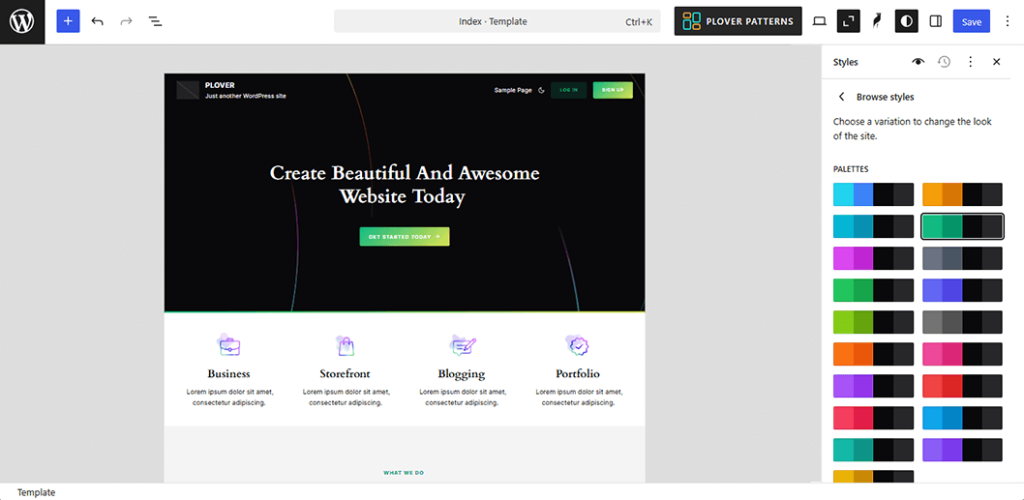
Under “Browse styles,” you will find the theme’s style variations. If your active theme does not have style variations, this option will not be available. The variations are the same that the Site Editor displays under Styles in the Navigation Sidebar.
In this view, the site is zoomed out so that you can see the full page without needing to scroll:
Default styles for the website
Below Browse styles, there are five panels: Typography, Colors, Background, Shadows and Layout. Options in five panels affect the whole website. For example, this is where you change the background color of the body and select a default font family and font sizes for your texts.
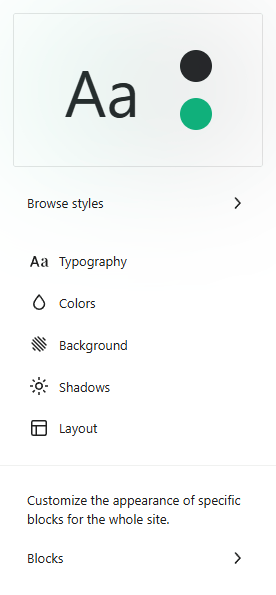
Default block styles
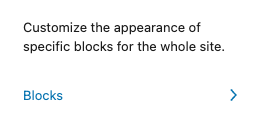
You can also select default styles for blocks. Click on “Blocks” in the bottom panel of the Styles sidebar:
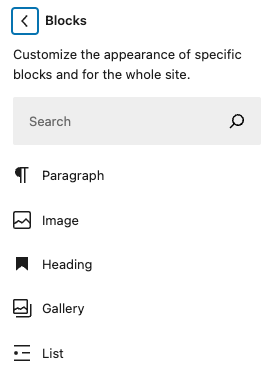
In the next panel, select or search for the block type you want to edit:
Resetting Styles
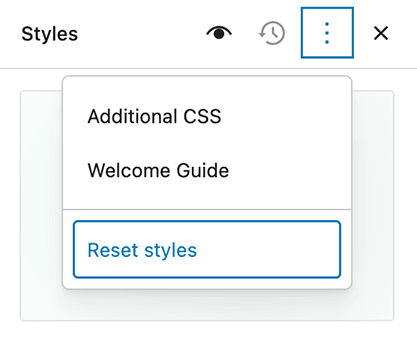
If you need to reset your style changes, you can select the Style actions menu at the top of the styles Sidebar and select “Reset styles”:
Custom CSS
There are two different Custom CSS fields in the Styles sidebar: One for the site and one for each block. You can open the site-wide Additional CSS field from the Style actions menu.
You access the block-specific CSS input field from the bottom of the block panel. This CSS field works differently than the site-wide CSS option because you add the CSS without a selector. WordPress automatically adds the CSS to the correct block.
Style Book
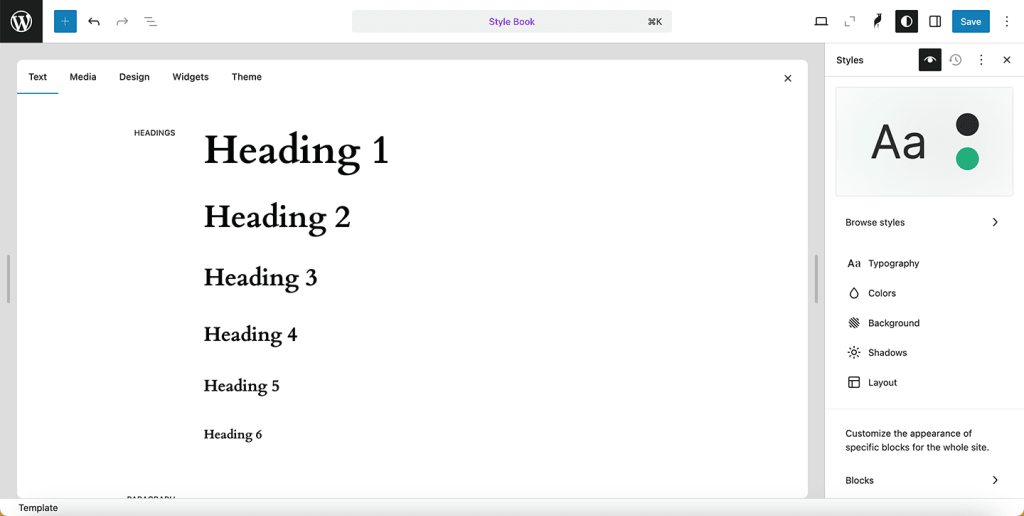
The Style Book adds examples of blocks to the editor so that you do not have to create demo content for testing your block styles. You can open it by clicking on the eye icon at the top of the Styles sidebar.
The Style Book displays blocks per category: Text, Media, Design, Widgets, and Theme.
Leave a Reply