
We’re committed to helping you succeed with Plover Theme. Whether you’re just getting started, running into a tricky issue, or looking to master advanced features, this section gathers all the resources and support channels available to you.
Frequently Asked Questions (FAQ)
Here are answers to some common questions we hear from users:
General Questions
Is Plover Theme free?
Yes! Plover Theme is completely free and available from the WordPress.org theme directory. The core theme includes all the features described in this documentation. We also offer Premium Plover Kit plugin with additional advanced features.
Do I need to install any plugins?
No, Plover Theme works beautifully on its own. However, we highly recommend the free Plover Kit plugin if you want enhanced blocks, animations, and design tools. It’s modular, so you can enable only what you need.
Can I use Plover with page builders like Elementor or Beaver Builder?
Yes, the Plover theme works with popular page builders, but it’s optimized for the Gutenberg editor. You can build any website without relying on heavy-duty page builders.
Can I use Plover with page builders like Elementor or Beaver Builder?
Yes, the Plover theme works with popular page builders, but it’s optimized for the Gutenberg editor. You can build any website without relying on heavy-duty page builders.
Dakr Mode Questions
Why isn’t the dark mode toggle button showing on my site?
If you accidentally removed the dark mode button from the site editor, You need to insert the “Dark Mode Toggle” pattern into your header, footer, or any other template part. See the Dark Mode Quick Start guide for step-by-step instructions.
I added the toggle, but clicking it doesn’t change anything.
First, check that you’re using a Plover style variation (or that your custom styles follow the dark mode color rules). The toggle works by switching between light and dark versions of your defined colors. If you’ve heavily customized colors outside Plover’s system, dark mode may not work as expected. Try switching to one of the built-in style variations to test. You can read Fine-tuning Dark Mode Colors for more details.
Can I have different colors for dark mode than the automatic inversion?
The automatic inversion rules are designed to maintain contrast and harmony. However, you can customize the color palette globally, and the inversion will apply to your new colors. For per-block control, use the “Llght / Dark” style variant available on container blocks.
The dark mode preview in the editor looks different from the front of my site.
This can happen if you have caching plugins active. Try clearing your site and browser cache. If the issue persists, check that your caching plugin isn’t minifying or delaying Plover’s dark mode scripts.
Style & Customization Questions
Where did the “Styles” sidebar go? I can’t find it.
The Styles sidebar is accessed by clicking the half‑filled circle icon in the top‑right corner of the Site Editor (next to the Save button). You can also click the pencil icon next to “Styles” in the left navigation sidebar.
I changed my global colors, but some blocks didn’t update.
This usually happens if those blocks have individual style overrides. Check each block’s settings – if you’ve manually set colors on a specific block, those will override the global defaults. You can reset a block to default by clearing its custom styles in the block settings sidebar.
How do I create a custom page template that only applies to certain pages?
- Go to the Templates panel in the left sidebar.
- Click “Add New Template”.
- Choose “Custom Template” (or a specific post type like “Pages”).
- Design your new template.
- When editing a page in the regular post editor, you’ll now see your custom template in the Page Attributes → Template dropdown. Select it for that specific page.
I made a mistake and want to reset everything to default. How?
For templates, use the three‑dot menu next to the template name and select “Reset”. For global styles, open the Styles sidebar, click the three‑dot menu (Actions), and choose “Reset styles”. Note that these actions cannot be undone, so proceed carefully!
Plover Kit Questions
Is Plover Kit required for animations and special features?
Yes, features like table of contents, breadcrumb, preloader, pattern library, and the Icon library are part of the Plover Kit plugin. Install it from the WordPress plugin directory to unlock these tools.
Are all Plover Kit modules free?
Most modules are free. Some advanced features (like additional animation effects or premium patterns) are available in the Pro version. You’ll see clear indicators within the plugin page about which features are free vs. pro.
Still have Questions?
If you couldn’t find an answer in the FAQ, here are the best ways to get support:
Official Support Forums (Free)
For free users, the recommended channel is the WordPress.org support forum:
Why use the forums?
- It’s the official support channel monitored by the development team.
- Your questions (and answers) help other users who may have the same issue.
- It’s completely free.
Tips for getting fast help:
- Search the forum first – your question may have already been answered.
- Start a new topic with a clear, descriptive title.
- Include details: your WordPress version, Plover theme version, and what you’ve already tried.
- If possible, include a link to the page where you’re experiencing the issue.
Priority Support (Email)
If you’re a Plover Premium user, you have access to direct email support:
- Email: [email protected]
- Please include your license id and a detailed description of your issue.
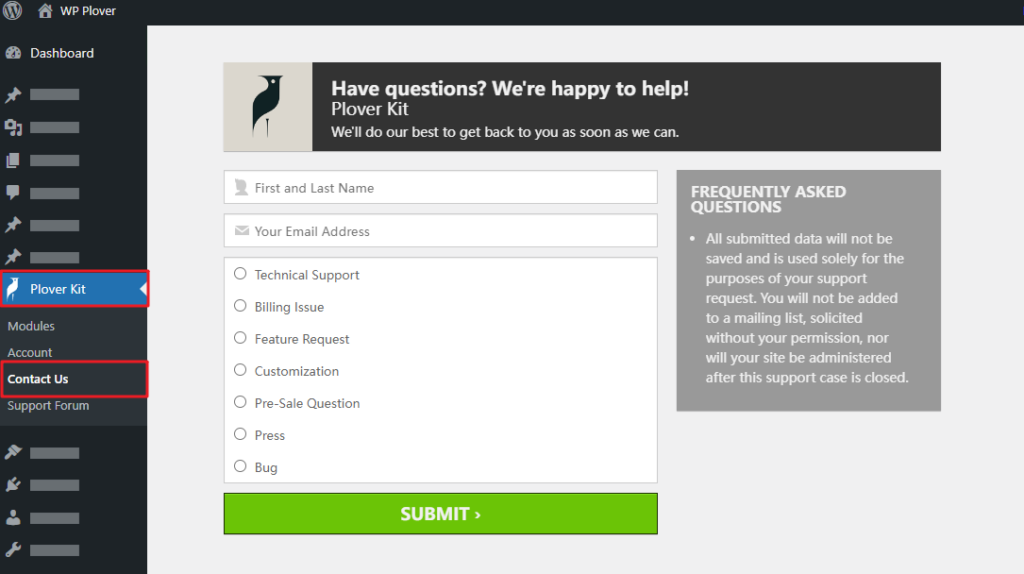
You can also contact us through the Plover Kit Plugin page of your WordPress dashboard.
Leave a Reply