
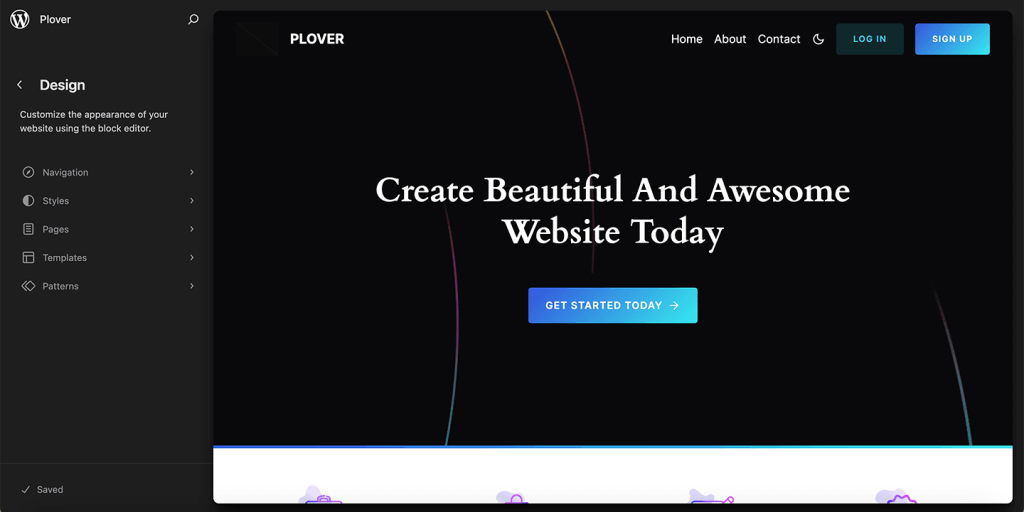
If you’ve used WordPress for a while, you’re probably familiar with the block editor (also called Gutenberg) for writing posts and pages. But did you know that the same block-based approach can now be used to design every part of your website – including your header, footer, sidebar, and even the layout of your 404 page?
That’s what Full Site Editing (FSE) is all about. It’s a major shift in how WordPress themes work, giving you the power to build and customize your entire site using blocks, without touching a single line of code.
Use the Site Editor to create and manage your website’s pages, templates, menus, patterns, and template parts. You can also update your 404 page, archives, and search result pages in the Site Editor.
In this guide, we’ll explain FSE in plain language, show you how it differs from traditional theming, and help you get started with Plover Theme.
🧩 From Classic Themes to Full Site Editing
To understand FSE, let’s look at how WordPress themes worked before.
Classic Themes
- A theme controlled the overall look of your site through PHP templates, CSS, and functions.php.
- To change your header or footer, you often needed to edit theme files or rely on theme options panels.
- Customization was limited to what the theme developer provided – going beyond that meant hiring a developer or writing custom code.
Full Site Editing Themes
- With FSE, the entire site – templates, template parts, and global styles – is built using blocks.
- You edit everything from one central place: the Site Editor.
- Changes are made visually, and you see exactly what you get as you design.
Think of it this way: if classic themes were like handing you a printed photo album, FSE is like giving you the original digital files and a powerful editing app – you can rearrange, recolor, and redesign every page to your liking.
🏗️ Core Concepts of Full Site Editing
FSE introduces a few key concepts that work together. Here’s what you need to know:
1. Blocks
Blocks are the building blocks of your content. In FSE, they’re also used to build your site’s structure. You have blocks for paragraphs, images, columns, navigation, site logo, query loops (to display posts), and much more.
2. Templates
Templates define the layout for different types of pages. For example:
- Index – the main blog page.
- Single – a single post.
- Page – a static page.
- 404 – the page shown when content isn’t found.
- Search – search results page.
You can customize each template using blocks.
3. Template Parts
These are reusable pieces of a template, like a header or footer. You design them once and they appear across multiple templates. If you update a template part, the change applies everywhere it’s used.
4. Patterns
Patterns are pre-designed block layouts that you can insert anywhere. They save time and help you create complex designs quickly.
5. Global Styles
Global Styles let you control the look of your entire site from one panel. You can set colors, typography, layout, and more – all without CSS. Changes apply site-wide, but you can also override them for individual blocks.
🖥️ Accessing the Site Editor
You can open the Site Editor from the WordPress Admin area under Appearance > Editor:

Or, from the Edit site link in the top bar on the front of the website:

Leave a Reply