
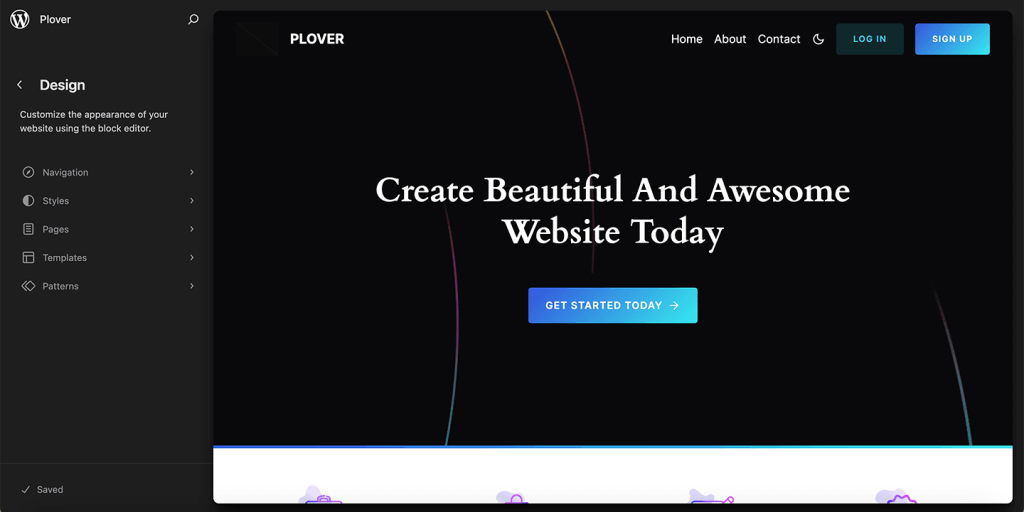
The left navigation sidebar is your command center. Its contents may change depending on what you’re editing, but the core items are always present.
In the following sections, we will delve into each menu item.
Navigation
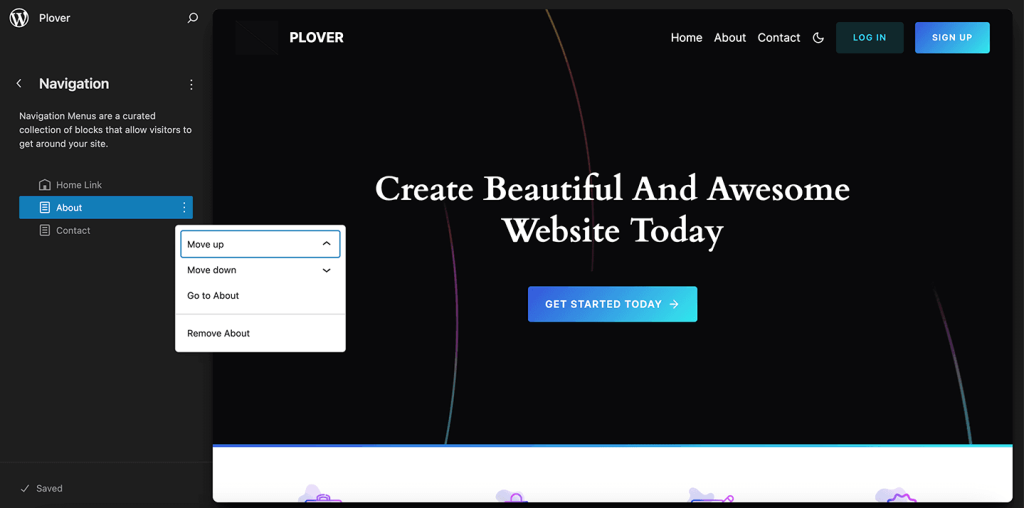
The Navigation menu shows the blocks in your most recent menu. This can include the Site logo block, page lists, links to posts, and external links.
You can update the menu and move or remove items by selecting the Options menu (three dots). You can also select and drag blocks to move them.
Styles
Under the Styles menu, you can select between the theme’s style variations.
To save your style variation choice, select the Save button at the bottom of the sidebar.
By selecting Edit (the Pen icon), you open the Site Editor with the Styles sidebar opened:
Templates and patterns
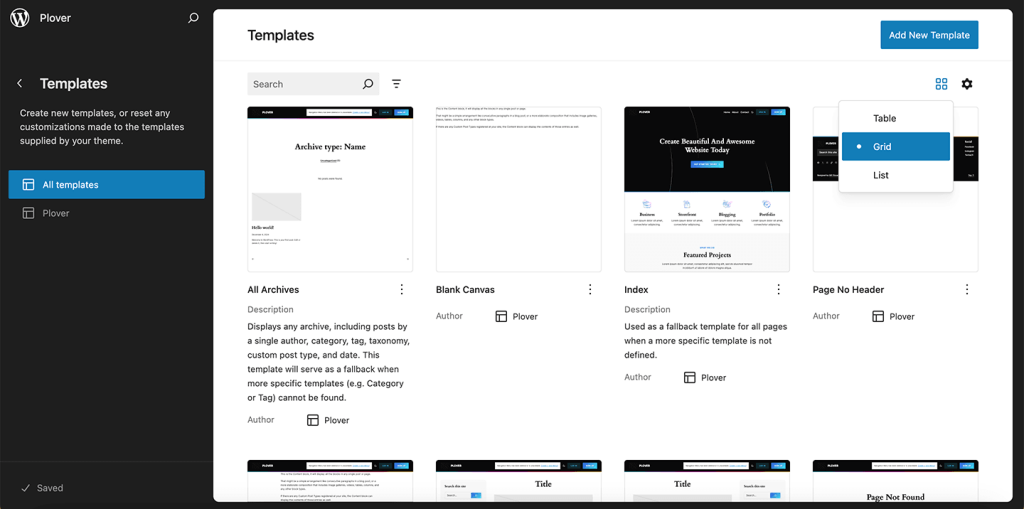
The template and pattern interfaces work similarly, so I will only show the templates in this lesson. When you open the templates sidebar, you will find all existilng templates.
You can switch between grid, table, and list layout using the layout button in the upper right corner.
When you click on one of the templates it will open it in the site editor and you can modify it as you wish.
Clear customizations
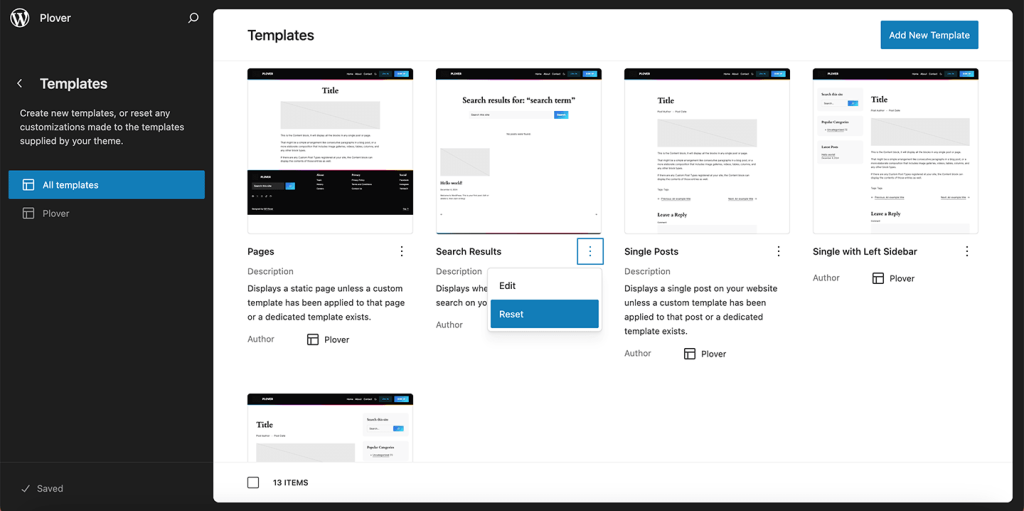
You can use the options menu behind the three dots to clear your customizations, like resetting templates to the default.
Creating new templates
Users can create new templates by using the “Add New Template” button in the upper right corner of the screen. You can also create custom page templates from the block editor.
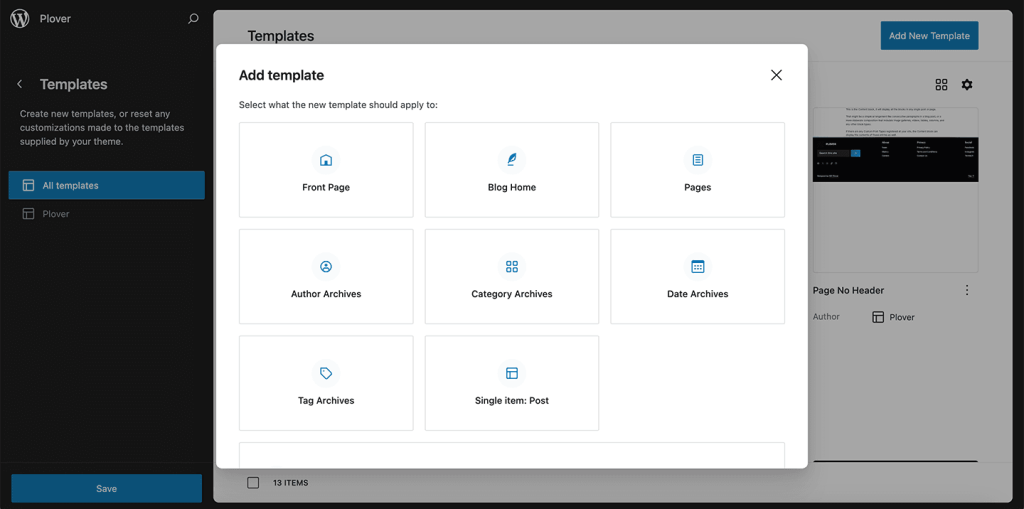
The list of available templates depends on which templates already exist. For example, your site can only have one Front Page template and one 404 template but infinite custom page and post templates. If you have plugins that add custom post types, they may also show in this list.
If you want to create a template that can be used by multiple posts, select the custom template option, not the single post option.
Leave a Reply